Pages

Q & A : BizTalk Server 2010 Configuration Error SSODB Cannot be created, SSODB is not accessible

Tuesday, July 29, 2014
Q: I have encountered the following error during BizTalk 2010 Configuration Error's : SSODB Cannot be created, SSODB is Not Accessible, SSODB is Used by Another service etc..,

Ans: 

There are a few known issues encountered during installation and configuration of BizTalk Server 2010,  There are a few points that you need to verify before you start configuring BizTalk Server 2010

  1. MSDTC Should be configured and Tested for ping using DTC Tester, DTC Ping for Multi-server Installation.
  2. Installing User need to have permissions to update Active Directory for If Domain Accounts are used for BizTalk Configuration
  3. BizTalk Service Account used for configuration needs  to have sufficient permissions to access database It needs to be part of SSO Administrators group during configuration
  4. You need to provide full SQL server name during installation SERVER_NAME\INSTANCE_NAME (Do NOT provide SQL Server Alias even if you have created one it may cause problems).
  5. In case you have installed .Net 4.0 as a part of Visual Studio or something else you need to register SSOSQL.dll so that SSO is registered to point the correct version of .Net Framework and load the correct dll. REGASM the SSOSQL.dll

This must be performed in order to allow the BizTalk Server Configuration console to access the database when performing the Enterprise Single Sign-On initial group creation.
  1. 1.     On servers which have .NET 4.x installed, a hotfix to repair the .NET version control on the SSOSQL.dll must first be run.  As an administrative user on the BizTalk Server, access this hotfix:

    http://www.microsoft.com/en-us/download/details.aspx?id=12284
    2.     As an administrative user on the BizTalk Server or using the Command Prompt being run as an Administrator, register the SSOSQL.dll using:

    C:\Windows\Microsoft.NET\Framework64\v4.0.30319\RegAsm.exe “C:\Program Files\Common Files\Enterprise Single Sign-On\SSOSQL.dll”
    3.     Ensure you are registering the SSOSQL.dll using the .NET 4.x version of RegAsm.exe or you’ll be wasting your time!  You can register it with an earlier .NET version RegAsm.exe but it will not work – it will not allow your BizTalk Server Configuration to access the database to setup the SSO Group.
Read more ...

Q & A: How To: Get rid of wcf one way port communication error

Friday, May 2, 2014
Q:

Hi,
 I Consumed one wcf one way serive at send port,but it is throwing error asking for reply.
A message sent to adapter "WCF-WSHttp" on send port "WcfCacheService" with URI "" is suspended.
Error details: System.ServiceModel.CommunicationException: The server did not provide a meaningful reply; this might be caused by a contract mismatch, a premature session shutdown or an internal server error.
Server stack trace:
at System.Runtime.AsyncResult.End[TAsyncResult](IAsyncResult result)
at System.ServiceModel.Channels.ServiceChannel.SendAsyncResult.End(SendAsyncResult result)
at System.ServiceModel.Channels.ServiceChannel.EndCall(String action, Object[] outs, IAsyncResult result)
at System.ServiceModel.Channels.ServiceChannel.EndRequest(IAsyncResult result)
Exception rethrown at [0]:
at System.Runtime.Remoting.Proxies.RealProxy.HandleReturnMessage(IMessage reqMsg, IMessage retMsg)
at System.Runtime.Remoting.Proxies.RealProxy.PrivateInvoke(MessageData& msgData, Int32 type)
at System.ServiceModel.Channels.IRequestChannel.EndRequest(IAsyncResult result)
at Microsoft.BizTalk.Adapter.Wcf.Runtime.WcfClient`2.RequestCallback(IAsyncResult result)
MessageId: {BE03C2AD-5888-42AA-AE1B-D25965C6446A}

 Thanks,


Sol:

Hi,
Problem got solved finally....feel gr8..
In Binding tab of WCF-Custom adaptor...Binding Type is customBinding
in the bindings rightclick on CustomBindingElement->Add Extention->select one way->and move this to up other wise will get error,bcoz http transport should be last.
click ok and apply..thats it..
Regards,


Read more ...

Biz Talk Q&A : Register Correct version of ASP.NET in IIS

Friday, April 25, 2014
Q:
Getting the below error while browsing the website running on ASP.NET 4 application pool.
Server Error in '/myVDir' Application. 
-------------------------------------------------------------------------------- Could not load type 'System.ServiceModel.Activation.HttpModule' from assembly 'System.ServiceModel, Version=3.0.0.0, Culture=neutral, PublicKeyToken=b77a5c561934e089'. Description: An unhandled exception occurred during the execution of the current web request. Please review the stack trace for more information about the error and where it originated in the code. Exception Details: System.TypeLoadException: Could not load type 'System.ServiceModel.Activation.HttpModule' from assembly 'System.ServiceModel, Version=3.0.0.0, Culture=neutral, PublicKeyToken=b77a5c561934e089'.
  1. Re-register the .NET 4 framework of ASP.NET with IIS
  1. Force this module to be loaded only inside a 2.0 application pool by changing the configuration manually
  1. Remove this 2.0 version Module from the list of modules if you are planning to run only ASP.NET 4 application pools.

You will run into this problem only if you install the .NET 3.5.1 WCF HTTP Activation feature after the installation of .NET 4 framework on your server.
Cause
Installation of .NET 3.5.1 WCF HTTP activation feature adds a global module for the 3.0 framework’s 'System.ServiceModel’ assembly for the type 'System.ServiceModel.Activation.HttpModule'. Since the application pool’s runtime version is v4.0, this assembly is tried to be loaded from the .NET 4 assemblies folder. Since, the definition of the 'System.ServiceModel.Activation.HttpModule’ is now moved to the “System.ServiceModel.Activation” assembly, it fails.
This problem doesn’t occur if you run your application pool under classic mode. You can resolve the problem by following any of the following:
Answer #1
To re-register the ASP.NET 4 assemblies with IIS, open a command prompt (as an admin), and navigate to the .NET 4 framework folder (%windir%\Microsoft.NET\Framework\v4.0.30319). Type aspnet_regiis -iru, and press enter. This command will re-register the ASP.NET 4 framework with IIS which will modify the ‘ServiceModel’ configuration to be loaded only inside a .NET 2.0 application pools. For some reason, you choose not to re-register the ASP.NET 4 version assemblies with IIS, you can follow the resolution #2 explained below, which will do the same configuration change, but manually.
Answer #2
The worker process tries to load the assembly since it passes the pre-condition. Its pre-condition is just “managedHandler” which doesn’t specify the runtimeVersion information. By default it is loaded inside the application pools running with any version of .NET framework.
To resolve the problem, change the configuration of the module to be loaded only if the runtime version is 2.0, so that it doesn't interfere with .NET framework 4 application pool:
<add name="ServiceModel" type="System.ServiceModel.Activation.HttpModule, System.ServiceModel, Version=3.0.0.0, Culture=neutral, PublicKeyToken=b77a5c561934e089" preCondition="managedHandler,runtimeVersionv2.0" />
AppCmd syntax:
appcmd.exe set config -section:system.webServer/modules /[name='ServiceModel'].preCondition:"managedHandler,runtimeVersionv2.0" /commit:apphost
Answer #3
Alternatively, you can uninstall the .NET 3.5.1 WCF HTTP activation if you are not planning to use this feature. This would simply remove the module ‘ServiceModel’ from the list of modules. Remember, this is going to affect all the application pools, so if you have any application pool which might use this module, then do not proceed with the uninstallation. Alternatively, you can remove it from the global modules list, and add it specifically to the application needing it.
You can also simply remove the module from the modules list. Below is the appcmd to remove the module from the global list.
AppCmd to remove the module:
appcmd.exe set config -section:system.webServer/modules /-"[name='ServiceModel']" /commit:apphost
Below is the AppCmd to add the module to the application needing it.
appcmd.exe set config "Default Web Site" -section:system.webServer/modules /+"[name='ServiceModel',type='System.ServiceModel.Activation.HttpModule, System.ServiceModel, Version=3.0.0.0, Culture=neutral, PublicKeyToken=b77a5c561934e089',preCondition='managedHandler,runtimeVersionv2.0']"
Read more ...

Creating Classes Using xsd.exe Demystified

Tuesday, March 11, 2014

Posted by 
Not a lot of people are familiar with the xsd.exe that ships with Visual Studio. It allows you to create XML/classes from XML/classes. The following are the 4.0 xsd.exe capabilities:
XDR to XSD
Generates an XML schema from an XML-Data-Reduced schema file. XDR is an early XML-based schema format.
XML to XSD
Generates an XML schema from an XML file.
XSD to DataSet
Generates common language runtime DataSet classes from an XSD schema file. The generated classes provide a rich object model for regular XML data.
XSD to Classes
Generates runtime classes from an XSD schema file. The generated classes can be used in conjunction with System.Xml.Serialization.XmlSerializer to read and write XML code that follows the schema.
Classes to XSD
Generates an XML schema from a type or types in a runtime assembly file. The generated schema defines the XML format used bySystem.Xml.Serialization.XmlSerializer.
It I’m a big fan of using xml schemas (XSDs) to generate classes that can be used to serialize and deserialize objects to and from XML (the XSD to Classes functionality listed above). If your schema changes, just rerunning xsd.exe for the correct schema updates the classes. No manually changes have to be made, including serialization code. It’s a beautiful thing. The problem has been, how do you set up your classes to automatically recompile with changes to the schema, and how do you deal with schemas that import other schemas?

XSDs Importing other XSDs

A common issue that developers of XSDs run into is violating the DRY principle repeatedly with XSD types. For example, let’s say you create a calendar meeting request service that has two XSDs, one for the request XML and one for the response XML. You’ve defined a xs:complexType “Meeting” that includes the date and location:
  <xs:complexType name="Meeting">
    <xs:sequence>
      <xs:element name="Location" type="xs:string"/>
      <xs:element name="Date" type="xs:date"/>
    </xs:sequence>
  </xs:complexType>
But you want to use it in both the request and the response XML. You could just copy and past it into both XSD files, and it will validate just fine, but if you use xsd.exe to generate your classes, it’s going to create two classes of type Meeting, which will cause a compiler error. You could have a separate namespace for each class, but then you’re definitely violating DRY. The answer is to place the Meeting type in a separate XSD and then reference it from both your request and your response XSD. This results in the XSDs below

C:\Solution\Project\Types.xsd
<?xml version="1.0" encoding="utf-8"?>
<xs:schema id="Types"
targetNamespace="http://www.Example.com/Types"
elementFormDefault="qualified"
xmlns="http://www.Example.com/Types"
xmlns:mstns="http://www.Example.com/Types"
xmlns:xs="http://www.w3.org/2001/XMLSchema"
>
  <xs:complexType name="Meeting">
    <xs:sequence>
      <xs:element name="Location" type="xs:string"/>
      <xs:element name="Date" type="xs:date"/>
    </xs:sequence>
  </xs:complexType>
</xs:schema>


C:\Solution\Project\Request.xsd
<?xml version="1.0" encoding="utf-8" ?>
<xs:schema elementFormDefault="qualified" xmlns:xs="http://www.w3.org/2001/XMLSchema" xmlns:myTypes="http://www.Example.com/Types">
  <xs:import namespace="http://www.Example.com/Types" schemaLocation="Types.xsd" />
  <xs:element name="Request">
    <xs:complexType>
      <xs:sequence>
        <xs:element name="RqstMeeting" type="myTypes:Meeting"/>
        <xs:element name="RqstName" type="xs:string"/>
      </xs:sequence>
    </xs:complexType>
  </xs:element>
</xs:schema>

C:\Solution\Project\Response.xsd
<?xml version="1.0" encoding="utf-8" ?>
<xs:schema elementFormDefault="qualified" xmlns:xs="http://www.w3.org/2001/XMLSchema" xmlns:myTypes="http://www.Example.com/Types">
  <xs:import namespace="http://www.Example.com/Types" schemaLocation="Types.xsd" />
  <xs:element name="Response">
    <xs:complexType>
      <xs:sequence>
        <xs:element name="Accepted" type="xs:boolean"/>
        <xs:element name="AlternateMeeting" type="myTypes:Meeting" minOccurs="0"/>
      </xs:sequence>
    </xs:complexType>
  </xs:element>
</xs:schema>


Now we’ve defined our Meeting type in one file, and reused it in both our Request.xsd and Response.xsd.


Getting xsd.exe To Import XSDs

Now that the type has been defined in another file, the xsd.exe will generate this error if you attempt to create the create the Request XML:
C:\Solution\Project>xsd.exe Request.xsd /c
Schema validation warning: Type 'http://www.Example.com/Types:Meeting' is not declared.
Warning: Schema could not be validated. Class generation may fail or may produce incorrect results.
Error: Error generating classes for schema 'C:\Solution\Projects\Request'.

- The datatype 'http://www.Example.com/Types:Meeting' is missing.
If you would like more help, please type "xsd /?".
This is due to the fact that the xsd.exe does not use the schemaLocation hint to find the imported schema. You’ve got to include it as a parameter. in your xsd.exe call:
C:\Solution\Project>xsd.exe Types.xsd Request.xsd /c
This will generate one file call Request.cs that has a Request class, and a Meeting class. Now we just need to create the Response class and we’re good to go. But wait… running “C:\Solution\Project>xsd.exe Types.xsd Response.xsd /c” will create a different file, Response.cs, that contains a Response class and a duplicate Meeting class. Now we’re stuck with another compiler error and no longer DRY.


Getting xsd.exe To Not Create Duplicate Classes

This is a simple fix, but it took me a long time to figure out. You have to use xsd.exe to compile all of your classes at once, so rather than running two separate commands, you just need to run one:
C:\Solution\Project>xsd.exe Types.xsd Request.xsd Response.xsd /c
Now you have one file, Response.xsd, with all three classes in it.

Getting Visual Studio 2010 To Auto Recompile XSD Generated Classes

Using the Project Build Events, you can set the project to always recompile the XSD classes each time you build the project. It is also helpful to rename the file so it isn’t always the name of the last XSD file passed to xsd.exe. Here are the Pre-build event command line values required to auto build the XSD classes and rename the file to XsdGeneratedClasses.cs:

EDIT suggested by Jamie instead of the Registry hack (it worked back in the day for me, don't know if it still does), he suggests using "$(TargetFrameworkSDKToolsDirectory)xsd.exe" to find the path of the xsd.exe. Thanks Jamie!

"$(Registry:HKEY_LOCAL_MACHINE\SOFTWARE\Microsoft\Microsoft SDKs\Windows\v7.0A\@InstallationFolder)\bin\NETFX 4.0 Tools\xsd.exe" "$(ProjectDir)Request.xsd" "$(ProjectDir)Response.xsd" "$(ProjectDir)Types.xsd" /c /o:"$(ProjectDir)"
move "$(ProjectDir)Types.cs" "$(ProjectDir)XsdGeneratedClasses.cs"

Now whenever the project get’s built, the XSD generated classes will always be rewritten by xsd.exe


Extending XSD Generated Classes

Don’t forget that classes created by xsd.exe are all partial classes. It’s a good idea to add default constructors and logic in a separate partial class in a different file. It’s especially helpful for initializing arrays since xsd.exe generated classes use arrays and not ArrayLists or Generic Lists. This allows you to add logic, that won’t be changed when the class is regenerated.


Serializing/Deserializing XSD Generated Classes

Now your code for Serializing and Deserializing your objects is as simple as this:
To Serialize:

XmlSerializer s = new XmlSerializer(typeof(Request));System.IO.TextWriter w = new System.IO.StreamWriter(@"C:\Request.xml");s.Serialize(w, new Request());w.Close();


To Deserialize:

XmlSerializer s = new XmlSerializer(typeof(Request));Request request;System.IO.TextReader r = new System.IO.StreamReader("request.xml");request = (Request)s.Deserialize(r);r.Close();

Read more ...

Q & A - How to Configure Parties in BizTalk 101

Monday, December 30, 2013

Q: You are developing an EDI solition, and you need to configure a new trading partner.


A:
Trading partner management is the most significant new functionality presented in BizTalk Server 2010. The new mapper has some nice features, but it doesn't bring new functionality to the product. The trading partner configuration, on the other hand, allows for the development of EDI solutions that could not be done before. This solution outlines how to create a trading partner in BizTalk Server.

Open the BizTalk Administration Console, and click Parties (see Figure 1).

Figure 1. The Parties folder in BizTalk


Right-click any area in the Parties and Business Profiles area and select New => Party.

In the Party Properties dialogue box, give the party an appropriate name. This should be the name of the trading partner you will be exchanging documents with.

Enable the option for the Local BizTalk processing (see Figure 2). This setting is used to indicate that BizTalk Server will be used to process messages to or from the party (rather than being the default party itself).

Figure 2. Configuring the base party object


Click the "Send ports" tab. This is where ports are associated with a party, and it is used in instances where all outbound EDI documents on this port should have envelope information configured as specified in the EDI properties of the party being configured. Add any relevant send ports, and click OK.
            Now that the party object has been created, a new business profile must be created. A business profile contains all of the EDI configurations for a given business of a trading partner. For example, a trading partner may be a single company with multiple departments or divisions. Each department has its own integrations with internal and external vendors, and each uses its own X12 or EDIFACT settings. One business profile for each department must be created in order to ensure that the envelopes on the EDI documents being exchanged are set properly, and that all other EDI specific configurations are accurate for that department.

            Right-click the party that was created, and select New => Business Profile (see Figure 3).

            Figure 3. Creating a business profile on a party


            Give the business profile a name representative of the business unit or department being set up. In many cases, a party will only have a single business profile.


            On the identities screen, set the trading partner ID(s) and qualifier(s) (see Figure 4). These values are given to you directly by the trading partner, and are the way trading partners are uniquely identified.

            Figure 4. Setting the Business Profile's identities


            Once the business profile is fully configured, click OK.
            With the business profile and core party configured, an agreement can be made. However, to create an agreement, you must have two parties configured. One party represents the recipient, and one is the sender. In many cases, BizTalk is going to be one of the parties. However, in the cases where BizTalk is acting as a value added network (VAN)—essentially, as a router of documents between parties—there may be many parties sending and receiving documents to many other parties. All of the configurations representing document communication between parties are known as agreements.

            To create an agreement, right-click the business profile, and select New => Agreement.

            Initially, there will be only a single tab to configure. You must specify the party being interacted with and the protocol being used. To do so, set the Protocol property to (for example) X12, and the Party and Business properties to an available party. Once these have been set, two new tabs will appear (see Figure 5). 
            These tabs are where all of the EDI specific information is configured for the given agreement.

            Figure 5. Setting the general properties of the Agreement


            Click each of the tabs to set the EDI-specific values based on the trading partner configuration specifications. An example of the Identifiers screen is shown in Figure 6. Once you are finished, click OK to save the trading partner configuration.

            Figure 6. Setting values within the agreement


            How It Works

            This recipe outlined how to configure the different components that make up a trading partner, but without the full story, understanding all of the settings is difficult.
                          Read more ...

                          Connecting Cloud to On premises - A cloudburst session by sam vanhoutte

                          Monday, November 4, 2013
                          post by sam vanhoutte 

                          This post contains cloud burst session video
                          In new scenarios, in which cloud is getting used, integration becomes very important. The Windows Azure platform provides a lot of different capabilities and services to make a secure link between your local systems and the Windows Azure services or machines. During this session, you will discover what the different technologies are and in what these are best applicable. You will learn more about the following technologies:
                          • Connectivity on messaging level: Service Bus Messaging
                          • Connectivity on service level: Service Bus Relay
                          • Connectivity on data level: SQL Data Sync 
                          • Connectivity on network level: Windows Azure Virtual Networking 
                          • Connectivity on security level: Active Directory integration

                          Read more ...

                          Publish WCF Service Endpoint to Azure Service Bus Relay | BizTalk 2013 / 2010

                          Monday, July 22, 2013
                          This post will focus on a feature that is technically present in BizTalk Server 2010, but was not installed by default. This feature was a subtle enhancement to the BizTalk WCF Service Publishing Wizard – namely the ability to publish a Windows Azure Service Bus Relay Endpoint without leaving the wizard (and also without using one of the new adapters that has Relay in its title).
                          Even if you didn’t know that this feature existed, you will find it the first time that you attempt to publish any BizTalk artifact (schema/orchestration) as a WCF service in BizTalk Server 2013. It takes the form of the following screen within the BizTalk WCF Service Publishing Wizard, which appears immediately after choosing to publish a service (rather than simply a metadata description):
                          publish_sbendpoint
                          If you check this box and proceed through the wizard (regardless of adapter selected on the first screen), you will see the following screen at the end of the typical wizard:
                          publish_sbendpoint_part2
                          The wizard assumes that you have already gone to the Windows Azure Management Portal and created a Service Bus namespace (effectively reserving yourself a sub-domain of servicebus.windows.net, and setting up an access control namespace for claims resolution and authorization purposes). If you’ve never done that before, it can be done through the New menu as shown below:
                          servicebus_namespace
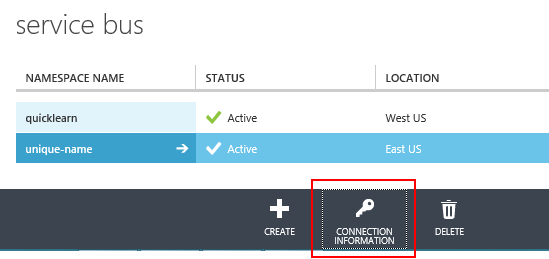
                          The next page of the wizard will require information necessary for BizTalk to authenticate with Windows Azure and prove that it is indeed the destination endpoint for the relay. This information is also obtainable only from the Windows Azure Management Portal. In order to access this information, you will need to click on your newly created namespace in the list of Service Bus namespaces, and then click theConnection Information button at the bottom of the page:
                          connection_info_button
                          This will bring up the following listing, of which you really only need to worry about theDefault Issuer (Issuer Name in the wizard), and Default Key (Issuer Key in the wizard):
                          connection_info_listing 
                          Once you gather this information, you’re ready to have a copy/paste party and fill out the last page of the wizard (unless you really want to live life in hard mode, don’t enable client authentication for metadata exchange – if you feel the need to do that, you may as well pass around the raw WSDL to whomever needs it and just forget about a MEX endpoint):
                          publish_sbendpoint_part3
                          Once you’re up to this point, you can sprint to the finish by clicking NextCreate(after reviewing the wonderful WSDL and making sure it’s something that you can be proud of), and then finally Finish.

                          TACKLING COMMON ISSUES

                          Outside of the typical issues one might encounter hosting a WCF Service in a BizTalk Isolated Host (e.g., App Pool Identity needs permissions to Message Box database, correct .NET Framework version needs to be selected for App Pool, Receive Location must be started), you may also encounter a new one:
                          image 
                          Again, for those using Google-fu in attempt to resolve an error, the error message reads:
                          Invalid element in configuration. The extension name ‘transportClientEndpointBehavior’ is not registered in the collection at system.serviceModel/extensions/behaviorExtensions
                          And it’s highlighting the portion of the configuration file that includes the key for Service Bus authentication.
                          Before getting right to the resolution, let’s recap what we’re looking at. Going through the wizard, I had selected to host a WCF-WSHttp endpoint internally in a BizTalk Isolated Host (i.e., running in an IIS App Pool rather than a BizTalk Host Instance process). I then indicated that I wanted to also expose the service through a NetTcp relay endpoint hosted externally (on Windows Azure).
                          My local IIS instance has been provided all the configuration information that it needs to coordinate with Windows Azure and make the relay live, but it currently doesn’t know what to do with it – which is why I have the error, and why my relay won’t be alive yet.
                          In reality, this all could have been avoided by reading. Specifically reading the last page of the BizTalk WCF Service Publishing Wizard, which should tell you that you need to install the AppFabric 1.0 SDK before any of the relays will work. Again, this is functionality that was technically available in the previous generation, hence the older SDK version number.

                          HOW TO KNOW THAT IT’S WORKING

                          If you have made it this far successfully, hitting the local service endpoint should give you a page that looks something like this:
                          workingservice
                          If you go to the Windows Azure Management Portal and dig into the namespace you created, you should see something like this:
                          relay_azure

                          IT’S NOT REAL UNTIL I CAN CONSUME IT

                          If you’re anything like me, this is an unsatisfactory ending point – the service doesn’t really exist until I can consume it from some client. To make it as fair as possible, I am hosting the service inside a fairly locked down Windows Azure Virtual Machine, and I will be consuming it from my laptop connected ultimately via a microwave connection somewhere in the shadow of Mt. Pilchuk.
                          To consume this beast, we need to know our namespace (e.g., unique-name.servicebus.windows.net), and the mex endpoint exposed via relay (seen in the screenshot above). From there I can construct the address I would use in the Add Service Reference dialog in Visual Studio. In this case, that URL will be:https://unique-name.servicebus.windows.net/GetItemServiceDescription/GetItemService.svc_mex
                          Upon consuming the service, you may notice that the WSDL importer chokes hard on the WSDL it’s finding. It tries to build up a custom binding to make the call, and it’s finding that it doesn’t really know anything about some of the binding elements required:
                          choked_importer
                          Again for those searching for this specific error, the message reads:
                          WsdlImporter encountered unrecognized policy assertions in ServiceDescription ‘YOUR NAMESPACE HERE’
                          In reality, we don’t need to build a custom binding to make this all happen. Instead, we can use the netTcpRelayBinding to make the connection. An easy way to make that happen is to install the Windows Azure Service Bus NuGet package to our project. We can start out by using the Manage NuGet Packages context menu item in Solution Explorer:
                          manage_nuget_packages
                          Then search for the Windows Azure Service Bus package, and click the Installbutton:
                          manage_nuget_packages_part2
                          This should update the App.config file of your application to include the following WCF extensions:
                          appconfig
                          From there, you will want to update your endpoint to reference thenetTcpRelayBinding (instead of the custom binding that the WSDL importer failed to generate properly):
                          1
                          2
                          3
                          4
                          5
                          <client>
                              behaviorConfiguration="sharedSecretClientCredentials" binding="netTcpRelayBinding"
                              contract="RelayedItemService.ItemService" name="RelayEndpoint" />
                          </client>
                          You will also notice above that we have assigned a behaviorConfiguration — one that currently does not yet exist. So next, we will need to add an endpoint behavior (inside the system.serviceModel section of the App.config) to perform client authentication (if you don’t want to re-use the same credentials as before, make that visit over to the ACS Management Portal that the Connection Information page is begging you to do):
                          1
                          2
                          3
                          4
                          5
                          6
                          7
                          8
                          9
                          10
                          11
                          <behaviors>
                            <endpointBehaviors>
                              <behavior name="sharedSecretClientCredentials">
                                <transportClientEndpointBehavior>
                                  <tokenProvider>
                                    <sharedSecret issuerName="owner" issuerSecret="YOUR SHARED SECRET VALUE HERE" />
                                  </tokenProvider>
                                </transportClientEndpointBehavior>
                              </behavior>
                            </endpointBehaviors>
                          </behaviors>
                          This is something that has changed more recently. In fact, I couldn’t find a single place documenting what this behavior should actually look like right now. Hopefully that will change.

                          INVOKING THE SERVICE

                          Once we get through all the configuration craziness, we’re ready to make quick work of calling the service with two lines of code (backed by a billion lines of configuration):
                          1
                          2
                          YourServiceDotNetNamespace.YourServiceClient client = new YourServiceDotNetNamespace.YourServiceClient("RelayEndpoint");
                          client.GetItem(new YourServiceRequest() { Id = "test" });
                          That’s all it takes.

                          Read more ...